

Last updated: November 2, 2025 · Reading time: ~12 minutes
If you’ve ever looked at your Shopify admin and thought, “I just need someone to guide me through this,” then Sidekick is here to help. Shopify Sidekick AI assistant understands your store and communicates in plain English. Now, it even has voice capabilities. Sidekick can analyze your sales, suggest changes, recommend apps, and help you navigate to the exact sections you need to click on. Think of it as less of a “chatbot” and more of an “on-call teammate.” Shopify describes Sidekick as an AI assistant with advanced reasoning capabilities that aggregates your store’s data to provide insights and execute tasks when you request them.
Before we get started, here’s what we’ll do together: we’ll activate Sidekick, achieve a quick win in analytics, and save that achievement as a reusable shortcut that you can trigger with just one click. Along the way, I’ll provide simple prompts that you can easily copy, along with examples of where I would use them in a real store.
If you would like some ideas or strategies for this coming Black Friday, I have this article here that gives you a really good idea of what to do to take advantage of it!
Table of Contents
How to use Shopify Sidekick and what it can do for you right now
Sidekick is seamlessly integrated into the Shopify platform and is the only Shopify AI tool for the moment, operating directly within your admin dashboard for a user-friendly experience. This powerful tool enables you to delve into sales trends, create customized ShopifyQL queries, visualize dynamic charts, and effortlessly export results—eliminating the need to open a separate spreadsheet.
As noted in the Help Center, Shopify Sidekick AI assistant can generate tailored ShopifyQL queries and produce an array of visually appealing chart types, including bar, line, and donut charts. You can export comprehensive reports in multiple formats, such as CSV, Parquet, JSONL, and XML, complete with convenient temporary download links. Though it may sound complex, it provides precisely what you need for a quick snapshot of “what changed this week?” without the hassle of data manipulation.
Looking ahead to 2025, Shopify Sidekick AI assistant is set to introduce some thrilling updates. One standout feature is its new voice conversation capability, allowing you to engage with it conversationally and receive spoken replies, creating a more interactive experience. Additionally, the introduction of a screen-sharing feature will enable you to share your screen for more effective issue resolution. Sidekick also boasts the ability to generate eye-catching images for banners and promotions, ensuring you never have to leave the Shopify environment. The voice mode debuted in September 2025, while the screen-sharing and live guidance enhancements were highlighted in the Summer 2025 Editions notes. The ability to create images was officially announced in the changelog in May 2025.
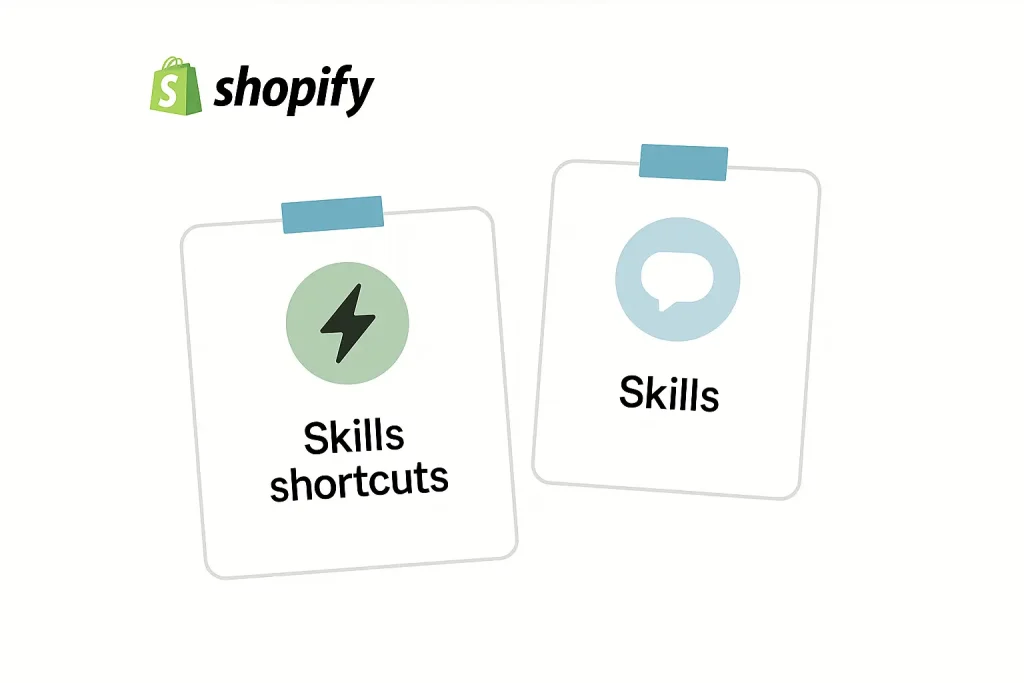
One of the most beneficial upgrades I regularly utilize is the Skills feature. This innovative option enables you to save effective prompts—such as those for a daily briefing or streamlining weekly inventory checks—as reusable shortcuts, which can be easily shared with your team. Launched in October 2025, this feature has proven to be an invaluable time-saver, significantly enhancing productivity and collaboration within the team.

Your first 10 minutes with Sidekick (do this with me)
Open your Shopify admin and click the Sidekick icon. If you want a more natural feel, tap the voice button and allow your mic. Shopify’s release notes confirm voice mode availability (English first, with broader support rolling out), so if you see it, you’re good to go. Now say: “Show me revenue, AOV, and refunds compared to last week—give me a one-paragraph summary.” Sidekick will run the queries, visualize what matters, and you can export the table to CSV if you want to share it. Shopify Changelog
Here’s where it gets fun. Ask Sidekick to help you fix something you’re avoiding. I like shipping settings because they quietly tank conversion when they’re off. Start a call with screen share, tell it “I think my delivery promises are too slow—help me adjust what’s realistic,” and let it guide you to the exact settings pages. Shopify’s Summer ’25 notes specifically call out voice + screen share as a way to talk through roadblocks in real time, which is exactly how I use it. Shopify
Finally, save your best prompt as a Skill. Tell Sidekick: “Save that analysis as Daily Shopify Brief and make it runnable with one click.” Tomorrow morning, you’ll trigger it and get the same tidy snapshot without re-explaining anything.
Real store uses that actually move the needle
Let me give you three workflows I rely on, the exact words I use, and how I sanity-check the results.
1) Sales pulse without spreadsheets.
When I’ve got five minutes, I ask for a clear week-over-week brief and a quick chart. If something looks off—like refunds spike or discounts eat margin—I’ll ask Sidekick to open the right report so I can see line items. The Shopify docs back up that Sidekick can create custom ShopifyQL explorations, chart them, and export the results straight from the admin.
Create a 7-day vs 7-day brief: revenue, AOV, refunds, and the top 10 products by profit. Add a bar chart for daily revenue and export the table to CSV.
2) “Fix my store” coaching with screen share.
I’m not too proud to admit I sometimes forget where a setting lives. So I’ll start a call and literally show Sidekick the snag. “I want the hero CTA to show above the fold on mobile—walk me to the setting, then sense-check my LCP risk.” Talking it out is faster than guessing through the menus, and it keeps me honest about Core Web Vitals. Shopify’s Editions page is explicit about voice and screen-share workflows for real-time problem-solving.
3) On-brand visuals in minutes.
Shopify Sidekick AI assistant can now generate images for banners and promos inside Shopify. I’ll ask for a dark, minimal hero with subtle gradients, then request two variations and a web-friendly export. It’s not a full-blown design studio, but for “I need a clean hero today,” it’s perfect—and yes, Shopify shipped this natively in May 2025.
Generate a clean, modern hero banner for a tech accessories store: dark background, subtle gradient, soft spotlight on a floating product silhouette. Export 1536×864 and a 4:5 variant; compress for web.
Prompts you can steal (and save as Skills)
1) Daily Shopify Brief
Paste this in Sidekick:
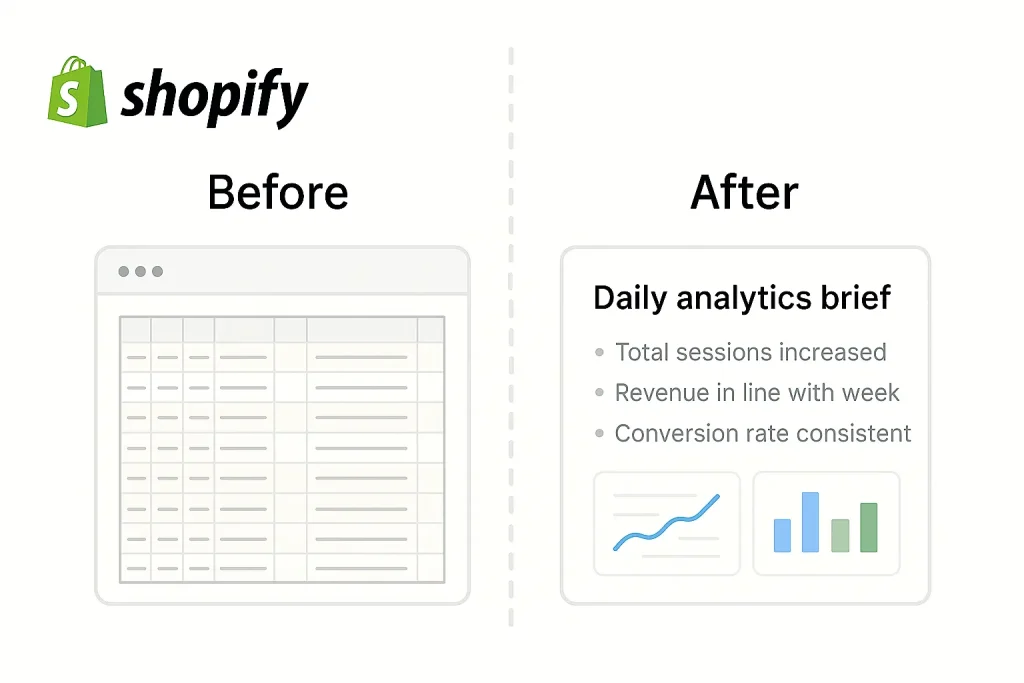
Give me a plain-English daily brief: revenue vs last 7/28 days, AOV, top 5 products by profit, refunds, discount leakage, inventory at risk (<14 days cover), and one recommended action (120 words).
What this does:
You’re asking Sidekick for a short morning summary of your store’s health. It pulls yesterday/today’s numbers, compares them to the last week and last 28 days, and tells you if you’re doing better or worse. It also spots problem areas—like too many refunds or discounts eating margin—and ends with one simple “do this next” tip.
What you’ll see on screen:
A small paragraph in normal English (no jargon) and usually a chart or table you can export. You don’t have to know anything about reports—Sidekick builds them for you behind the scenes.
How you use it day-to-day:
Open Sidekick when you start work, run this prompt, and do the one action it suggests. Saving this as a Skill means tomorrow you can run it with a click, no retyping.
Common tweak:
If you run promotions on weekends, ask “compare to last 3 weekends” instead of 7 days, so you’re comparing apples to apples.
2) Weekend Bundle Launcher
Paste this in Sidekick:
Create a “Weekend Bundle” collection with our three highest-margin items, add a 15% code valid Fri–Sun, write a 120-word announcement for email and a 1-line homepage banner, then show me the changes to approve.
What this does:
You’re telling Sidekick to spin up a quick weekend promo—pick your three best-profit products, group them in a collection, create a discount code that only works Friday through Sunday, and draft the marketing copy for you.
What you’ll see on screen:
Shopify Sidekick AI assistant assembles the collection, prepares the discount, and writes two pieces of copy: a short email you can paste into your email tool and a single sentence for your homepage banner. It does not publish anything without you. You’ll get a clear “review/approve” moment so you stay in control.
How you use it day-to-day:
Run this on Thursday afternoon, skim the copy, adjust the percent off if you want, and hit save on the pieces you like. If it performs, save the prompt as a Skill named “Weekend Bundle” so you can re-run it next week in seconds.
Common tweak:
Swap “three highest-margin items” for “two best-sellers + one slow mover” if you want to clear old stock without discounting your entire catalog.
3) Theme Polish (mobile-first)
Paste this in Sidekick (open your Theme Editor first):
In the Theme Editor, tighten hero spacing on mobile, reduce H1 size slightly, and round buttons one step. Explain each change and where to revert if I don’t like it.
What this does:
This is a mini “make it look cleaner” pass focused on phones (where most traffic is). You’re asking Sidekick to adjust spacing so important info shows without scrolling, shrink an oversized heading, and make buttons a little rounder—all small, safe changes that usually improve first impressions.
What you’ll see on screen:
Shopify Sidekick AI assistant walks you to the exact controls inside the Theme Editor and proposes the new settings. It also tells you why it chose them and how to undo them. Nothing goes live until you click save.
How you use it day-to-day:
Run this after adding a new hero image or headline. It’s a fast way to prevent the “giant title pushes my CTA off-screen” problem on mobile.
Common tweak:
If your brand is very sharp/boxy, say “keep button shape square” so Sidekick only changes spacing and heading size.
How to save any of these as a one-click Skill
After Sidekick gives you a result you like, simply say: “Save that as a Skill called ‘Daily Shopify Brief’” (or any name you prefer). Next time, just run that Skill—no typing, no remembering the exact wording. You can also share the Skill with teammates so everyone uses the same, proven workflow.
A quick word on accuracy and control
Sidekick is helpful, but you’re still the publisher. I treat it like a smart assistant: it drafts, navigates, and runs analyses; I review, approve, and ship. Shopify’s docs consistently emphasize that Sidekick works inside your admin context—creating queries, opening the right places, and producing outputs you can export—so you stay in the loop rather than handing over the keys.
Where does this fit with the rest of your stack?
If you’re currently selling on Amazon or planning to, I recommend pairing Shopify Sidekick AI assistant store insights with Helium 10 for marketplace keyword research and listing optimization. I have successfully used both tools together: Sidekick for actions related to my store and Helium 10 for Amazon-specific data. If you’re interested in my exact starter workflow, I’ve linked it in our Amazon content, and you can access Helium 10 here. Additionally, I strongly recommend integrating the “Buy with Prime” button into your Shopify store. Here is a quick guide on how to do it, as it can significantly boost your sales and enhance your credibility.
And if you keep a WordPress knowledge hub alongside Shopify for deeper SEO playbooks, I like Rank Math for on-page and schema work. Here’s my usual setup guide and the link (also affiliate). I only recommend tools I actually lean on in my own builds.
Quick FAQs (straight to the point)
Sidekick is part of Shopify’s AI capabilities in the admin; exact access and features can vary by plan and rollout. Always check the official notes for your store/region.
Yes—voice mode and real-time guidance are part of the 2025 updates. Voice launched in September 2025; live guidance/screen-share flows are highlighted in the Summer ’25 release.
Shopify Sidekick AI assistant can generate images directly in the admin. I still compress and set fixed dimensions before publishing for Core Web Vitals.