
Last updated: November 1, 2025
What would be included in this article?
- The Buy with Prime Shopify integration lets Prime members check out on your site with fast, free delivery while you keep orders in Shopify and payouts through Shopify Payments.
- Requirements: US store, Shopify Payments, Amazon Pay (wallet), Professional Seller Central + FBA.
- Steps: Install the Amazon MCF & Buy with Prime app → enable Amazon Pay (wallet) → connect Seller Central → map SKUs → toggle Prime on PDPs → enable mixed carts (split shipping) → test.
- Layer in a multi-channel fulfillment (MCF) app to ship non-Prime orders from the same FBA inventory.
- Use CRO tactics (placement, reviews, trust, FAQs) to get conversion-boosting results.
Table of Contents
Who is this guide for?
- Amazon sellers are adding a DTC channel without rebuilding logistics.
- Shopify brands that want Amazon Prime on Shopify for trust and speed.
- Teams aiming for fast shipping for Shopify stores with minimal ops overhead.
- Merchants are considering the broader Shopify Amazon partnership and what it means for checkout and fulfillment.
How the Buy with Prime experience works on Shopify
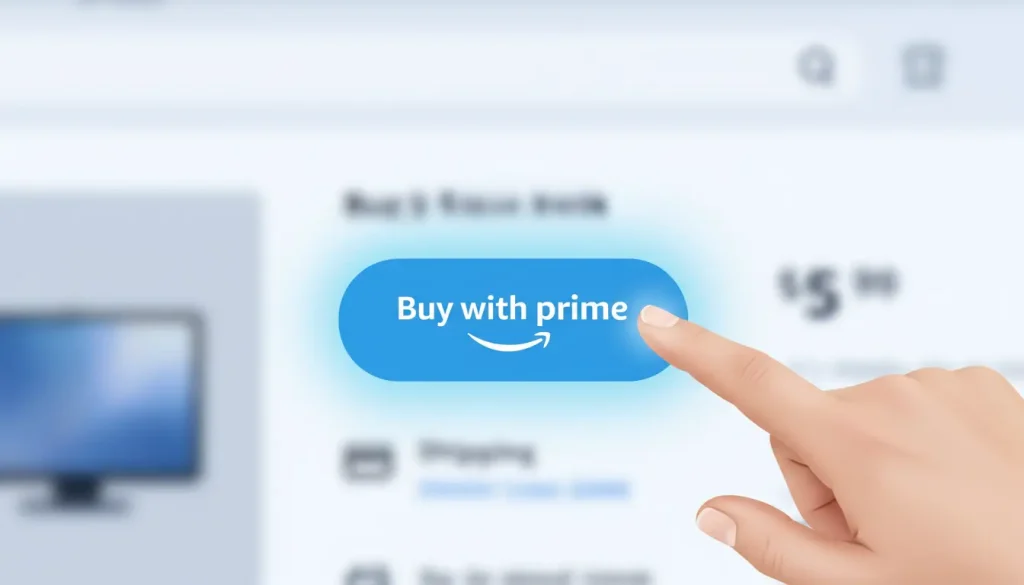
Looks like we need to start from square one, right? When shoppers check out a Prime-eligible product, they’ll spot a “Buy with Prime” option on the Product Detail Page (usually near the “Add to Cart” button). If someone is a Prime member, they can quickly log in with Amazon, pick their saved address and payment info, and wrap up the checkout on Shopify using Amazon Pay as their wallet. The order will then show up in Shopify Admin with a “Buy with Prime” tag, and the payouts will go through Shopify Payments like all your other orders.
If you are interested in preparing for Black Friday or Cyber Monday sales, I’ll leave this article here to help you get ready for these important sales events.
Why this matters:
- Trust + speed: recognizable Prime badge + fast, free delivery.
- Lower friction: stored Amazon credentials reduce checkout time.
- Centralized ops: one admin (Shopify) for order management, returns links, and analytics.
- Inventory leverage: with the multi-channel fulfillment (MCF) app, the same FBA inventory can ship your non-Prime orders too.
Requirements (Quick Checklist)
- The business must be US-based, and you should sell in USD.
- Ensure that Shopify Payments is enabled and that Amazon Pay is activated under Wallets.
- You need a Professional Amazon Seller Central account with Fulfillment by Amazon (FBA) enabled.
- The products you intend to offer through the Buy with Prime Shopify integration must have FBA inventory located in the US.
- Most mainstream Shopify themes are compatible; however, highly customized themes may require minor template adjustments.
Tip: If you previously used the legacy standalone Amazon Pay or older Buy with Prime snippets, make sure to use the current Amazon Pay wallet path and the official combined app to prevent any conflicts.
Fees to Expect (At a Glance)
1- Prime service fee
3% of order value (excl. tax), $1.00 minimum per order.
2- Payment processing via Amazon Pay
When you use the MCF & Buy with Prime app for Shopify, Amazon Pay fees are not applicable. However, the transaction will incur the Shopify Payments card rate, which varies depending on your plan and is generally between 2.5% and 2.9% plus $0.30 for online transactions. To check your exact rate, go to Shopify Admin → Settings → Payments.
3- FBA/MCF pick, pack, ship, and storage fees (based on size and weight)
Buy with Prime utilizes Amazon’s network. Fees depend on size, weight, and units per order. Common examples for 2025 in the contiguous U.S. (non-peak):
- Small Standard (4 oz or less): $5.33 (1 unit)
- Small Standard (8 oz or less): $6.10
- Small Standard (12 oz or less): $6.53
- Small Standard (16 oz or less): $7.54
- Large Standard (1–2 lb): $9.66
- Large Standard (2–3 lb): $10.67
- Large Standard (3–20 lb): $10.67 + $0.60/lb above the first 3 lb
- Large Bulky (up to 30 lb): $15.50 + $0.68/lb above the first 2 lb (Per-unit rates decrease when the order has 2, 3, or 4+ units.) Buy with Prime
4- Returns handling according to Amazon’s policy
Standard FBA storage charges apply (by size tier and month); see the linked FBA fees reference from Amazon. Buy with Prime
When you’re putting together a budget, it’s a good idea to play it safe at the SKU level. Try checking out the margins with and without Prime to see how they affect conversion rates compared to costs.

The step-by-step Buy with Prime Shopify integration
1) Install the official app
- In your Shopify Admin, head over to Apps and check out the Shopify App Store. Look for the Amazon MCF & Buy with Prime app—it combines catalog syncing, Buy with Prime, and MCF all in one place!
- Click Install and approve permissions.
2) Enable Amazon Pay (Wallets) inside Shopify Payments
- Go to Settings → Payments → Shopify Payments → Manage.
- Under Wallets, toggle Amazon Pay on and follow the short activation flow.
Currently, the Buy with Prime integration for Shopify uses Amazon Pay as a wallet during the Shopify Checkout process. This method is supported and up-to-date, ensuring that your payouts remain unified.
3) Connect Seller Central (with FBA)
- Open the app → Connect Amazon.
- Log in to Seller Central with the professional account tied to your FBA inventory.
- Grant requested permissions so the app can read inventory, create fulfillment, and write order updates.
Pro tip: If you run multiple marketplaces, make sure you connect the US marketplace for Prime on Shopify.
4) Map SKUs between Shopify and Amazon
- In the app, run auto-mapping; if a Shopify SKU equals your Amazon/FBA SKU, it usually pairs automatically.
- For any mismatches, map manually.
- Confirm units, variations, bundles, and that your FBA inventory is in stock.
Why this matters: accurate mapping prevents “Prime shown but out of stock” scenarios and ensures correct fulfillment routing.
5) Turn on Buy with Prime at the product level
- In Apps → Amazon MCF & Buy with Prime, open Manage Prime-enabled products.
- Toggle Offer Prime (or “Enable Buy with Prime”) for each SKU or product group.
- Save. The module appears on PDPs that meet eligibility.
Placement: Most themes insert the Prime module near the Add to Cart. If your design is highly customized, verify the block appears above the fold—visibility drives the conversion-boosting effect.
6) Enable mixed carts (split shipping)
- In Settings → Shipping and delivery, enable split shipping so a single checkout can include Prime and non-Prime items.
- This improves AOV by letting shoppers add accessories or non-FBA items without abandoning the Prime flow.
7) Test the full flow
- Open a private/incognito window.
- Visit a Prime-enabled PDP and click Buy with Prime.
- Sign in to Amazon, pick address/payment, then confirm the Prime checkout on Shopify.
- Place a test order; verify order appears in Shopify Admin with the Buy with Prime tag, correct shipping, and correct payout handling.
- Test a mixed cart too (Prime + non-Prime).
Optional but Powerful: Enable the Multi-Channel Fulfillment (MCF) App
Why should you consider using the Multi-Channel Fulfillment (MCF) app with your Buy with Prime Shopify integration? Here are some key benefits:
- Streamlined Shipping: Ship all Shopify orders, including non-Prime orders, from the same FBA (Fulfillment by Amazon) inventory.
- Simplified Operations: Manage a single replenishment plan for both Amazon and Shopify.
- Competitive Rates: Enjoy competitive pick-and-pack rates, particularly for small or lightweight products (SKUs).
- Increased Resilience: If your third-party logistics (3PL) provider experiences delays, FBA can serve as a backup option.
The setup process is mostly completed once you connect the combined app. Within the app, you will need to confirm the MCF settings, the shipping speeds permitted for non-Prime orders, and how you wish to share tracking information with customers.
CRO tactics to maximize your Buy with Prime results
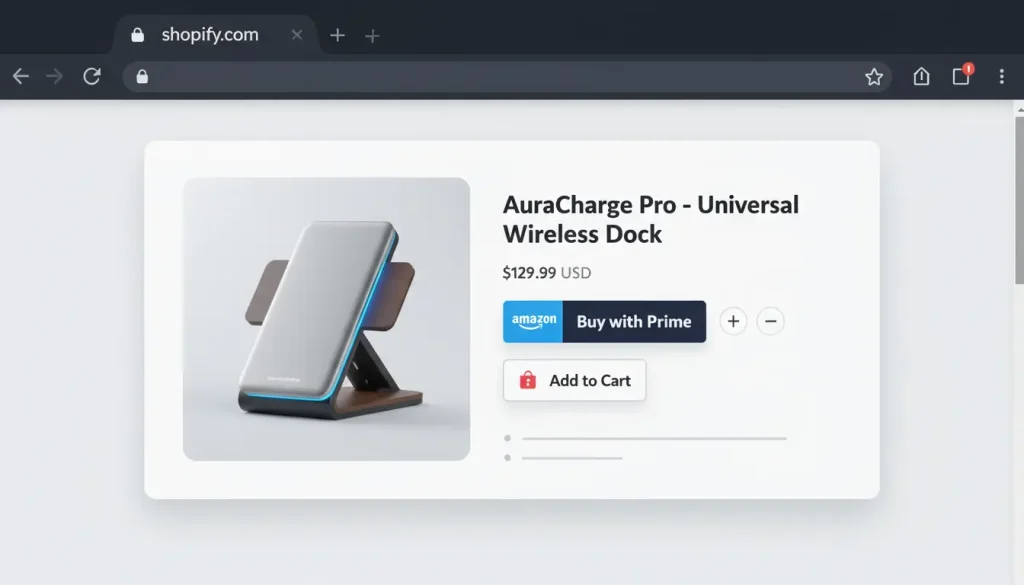
- Above-the-fold placement
Put the module near the main CTA. Use PDP bullets like “Fast, free delivery for Prime members” and “Hassle-free returns.” - Reviews from Amazon
If your listing has strong Amazon reviews, showing them on the PDP can multiply the conversion-boosting effect. Add review snippets or a star block under the title. - Mixed-cart prompts
Nudge “Add accessories” right below the module. Mixed carts with split shipping keep Prime convenience while boosting AOV. - Badging and microcopy
Repeat trust cues in tiny places: cart line items, checkout summary, and the shipping method label. - Speed & UX
Keep your LCP image eager-loaded and sized. Reserve space for the module to avoid CLS. Use clear price + delivery date blocks
Troubleshooting & edge cases
Buy with Prime button isn’t showing
- Ensure the product is “Prime-enabled” in the app and FBA stock exists.
- Switch to a default theme preview to rule out custom template conflicts.
- Confirm your store currency and Shopify Payments status meet requirements.
Legacy Amazon Pay conflict
- If you previously used the old third-party Amazon Pay integration or pasted BWP scripts, remove those to avoid double rendering or payout conflicts. Use the Amazon Pay wallet path.
Mixed cart not splitting shipments
- Check Shipping and delivery settings for split shipping. If disabled, Prime items may force a separate checkout.
Returns workflow confusion
- Prime orders follow Amazon’s return policies/flow. Add a short FAQ on your PDP and post-purchase email linking to returns status to reduce tickets.
Pre-order, bundles, or subscriptions
- Confirm whether your exact pre-order/subscription app supports Prime flows. If not, either exclude those products or offer a separate non-Prime checkout path.
FAQs
Yes. The Buy with Prime Shopify integration uses Amazon Pay as a wallet within Shopify Checkout. Orders live in Shopify Admin; payouts flow through Shopify Payments.
No. You need a Professional Seller Central account and FBA inventory, but you don’t need live Amazon.com listings to use Amazon Prime on Shopify.
Yes—enable split shipping to allow mixed carts.
Combine Prime service + payment processing + FBA/MCF pick-pack-ship + storage. Model per-SKU contribution margin with and without Prime to see the conversion-boosting tradeoff.
You might need to insert the Prime block manually or adjust its position. Test on a theme copy, then publish.